
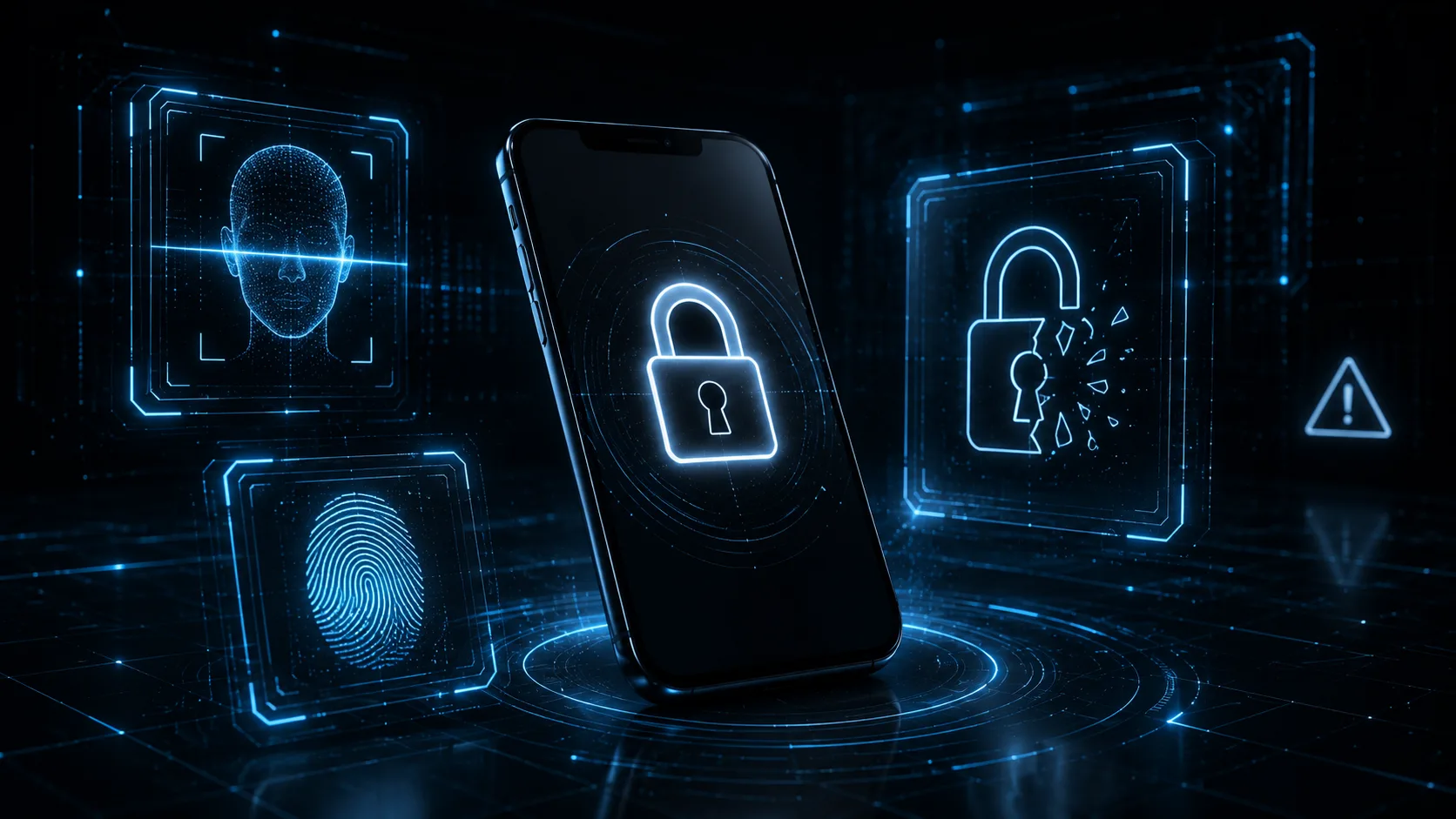
"Your Apple ID has been locked": check the message without losing your account.
Change the password immediately, and remove any devices you don't recognize from the account.
A locked-account warning is never something to resolve by clicking a link. Here's how to verify it and protect your photos and backups.
The message might claim Apple detected suspicious activity on your account, or that iCloud will be disabled unless you verify it right away – with your photos and backups dangled as what's at risk. Apple has shifted much of its documentation toward the term "Apple Account," but plenty of scam campaigns still say "Apple ID," so the label alone tells you nothing about whether the message is real. Verification should only ever happen through your device's Settings app, another trusted Apple device, or by manually typing account.apple.com into a browser – never through the button in the email or text itself.
This scam works partly because most people genuinely don't know what a real Apple security notice looks like, since they rarely see one. That unfamiliarity makes almost any alarming message about the account feel plausible enough to click through, especially when it threatens something as personal and hard to replace as years of photos.
What the fake page is actually after
The first thing a fake Apple page collects is your account and password. If that works, it typically goes further and asks for a two-factor code, a phone number, card details, security question answers, an ID document, or even your device passcode. That combination matters: a password plus a live two-factor code can be enough for an attacker to add their own device to the account or change its recovery settings, which is a much bigger problem than a stolen password alone.
Warning signs
- A threat to erase your photos or lock the account within just a few hours
- A link that opens an unfamiliar domain, or one using lookalike characters with "secure," "verify," or "icloud" tacked onto an unrelated domain
- An unsolicited phone call claiming to be Apple support
- A browser pop-up displaying a phone number to call
- Anyone asking you to read a verification code out loud over the phone
The urgency itself is often the biggest tell. Apple's real account notifications generally give you time to review and respond through the device you're already using, rather than demanding an action within a countdown before anything can be checked properly.
Apple's own guidance is not to respond to suspicious calls or messages and to contact the company only through official channels if you're unsure.
Pop-ups and pages that mimic system alerts deserve particular caution, since a browser window can be styled to look almost identical to a real operating-system dialog. If a "security warning" appears while you're simply browsing the web, treat it the same way as an email: close it, don't call any number it displays, and check the account status independently instead.
How to check your account yourself
On a device you already trust, review your connected devices, trusted phone numbers and email addresses, recent sign-in alerts, password changes, any codes you didn't request, and recent purchases. You can also type account.apple.com into a browser manually to check the account directly. If your password no longer works, use iforgot.apple.com to start recovery through Apple's official process rather than anything linked from a suspicious message. This same review is worth doing periodically even without a prompting message, simply as routine account hygiene.
If you already shared your password or a code
Change the password immediately. Remove any devices you don't recognize from the account. Review your recovery phone numbers and email addresses and confirm you still control every one of them. If you entered payment information anywhere in the process, contact your card issuer as well. Apple provides a phishing reporting address, reportphishing@apple.com, for forwarding suspicious emails. Doing this quickly matters more than doing it perfectly: a password change within minutes closes off far more risk than a delayed, thorough cleanup done a day later.
Reducing the risk going forward
Turn on two-factor authentication if it isn't already active, use a strong device passcode, keep your recovery information current, and consider setting an account recovery contact. It's worth remembering that a security alert doesn't automatically mean your account has already been compromised: it could be phishing, or it could be a real attempt that Apple already blocked on its own. Either way, the safe response is the same: verify through an official channel before doing anything else. It's also worth backing up your photos to a second location periodically, independent of iCloud itself, so that even in a worst-case scenario the threat of losing them entirely carries less weight over your decisions.
Variants you'll run into
The "locked account" email is only one costume this scam wears. A common sibling is the storage-full message: "your iCloud storage has expired, update payment to keep your photos," which skips fear of hacking and goes straight for your card details. Another arrives as a calendar invite: a spammy event that appears in your calendar app with a phishing link in the notes, exploiting the fact that invites can land without your consent. There's also the unsolicited support call, where caller ID appears to show Apple and a scripted "advisor" walks you toward reading out a verification code or installing remote-access software.
The cruelest variant targets people whose iPhone was just stolen or lost. Days after the theft, a text arrives claiming the device was found – with a link to a fake Find My page that asks for the Apple Account password. The thief sends it, because the password is the only thing standing between them and unlocking the stolen phone for resale. If you've recently lost a device, expect this message and treat it as confirmation the phone is in a criminal's hands, not on its way home. Across every variant the goal is the same short list: your password, a live two-factor code, or your payment card: and no legitimate Apple process ever collects any of them through a link that arrived unrequested.
A realistic walkthrough: Tom's Saturday scare
Tom, 45, gets an email on a Saturday morning: "Your Apple ID has been locked due to unusual sign-in activity. Your photos and backups will be deleted in 24 hours unless you verify your identity." The sender name reads "Apple Support," the logo is crisp, and the tone is exactly as formal as he'd expect. He has fifteen years of family photos in iCloud, and the deletion threat lands hard. He taps "Verify Now" and a sign-in page opens – familiar layout, padlock in the address bar.
Then he does one thing right: before typing anything, he glances at the address itself and sees a domain that is not apple.com, just a long string with "icloud-verify" buried in the middle. He closes the page, opens Settings on his iPhone, taps his name at the top, and looks around: no alerts, no unfamiliar devices, everything normal. The "locked" account he was panicking about was never locked at all. He forwards the email to reportphishing@apple.com and deletes it. The lesson: the threat lived entirely inside the message: thirty seconds spent checking the account directly dissolved it, and no countdown timer in an email has ever actually deleted anyone's photos.
Prevention that goes beyond the basics
A few settings quietly remove most of this scam's openings. In Messages, enable filtering of unknown senders so phishing texts land in a separate list where their urgency reads very differently. In Calendar settings, review how invitations are handled so junk invites don't pop up as trusted-looking notifications. If you use Safari's Hide My Email or unique addresses per service, a message sent to the wrong address instantly exposes itself as fake: the mismatch does the detection for you.
Strengthen the account's recovery path while things are calm: confirm your trusted phone numbers are current, add a recovery contact you trust, and make sure an old number you no longer control isn't still listed. Then brief the rest of the household, because the family member most likely to type their password into a fake page is rarely the one reading this article. Agree on one rule everyone can remember: Apple never asks for your password, verification code, or card details through a link, a call, or a pop-up. Anyone who does is a stranger, no matter what the screen says. And if a phone in the family is ever stolen, warn its owner the same day that a "your iPhone has been found" text is coming – knowing it in advance is what makes it easy to ignore.
Quick checklist
- Never verify your Apple ID through a link in an email or text
- Check account status directly in Settings or at account.apple.com
- Never share a two-factor code with anyone, including someone claiming to be Apple
- Use iforgot.apple.com if your password stops working
- Report suspicious messages to reportphishing@apple.com
Frequently asked questions
Can Apple really lock an account?
What if I receive a verification code I didn't request?
Where can I report Apple phishing?
reportphishing@apple.com.
Daniel A. and Óscar S. run Breachfolio, a small independent site about security and AI. This article was drafted with AI assistance and reviewed by a person before it went live. We write from documentation, vendor sources and published research rather than from original lab benchmarks, and we link a source in the sentence that relies on it. How we work · About us