
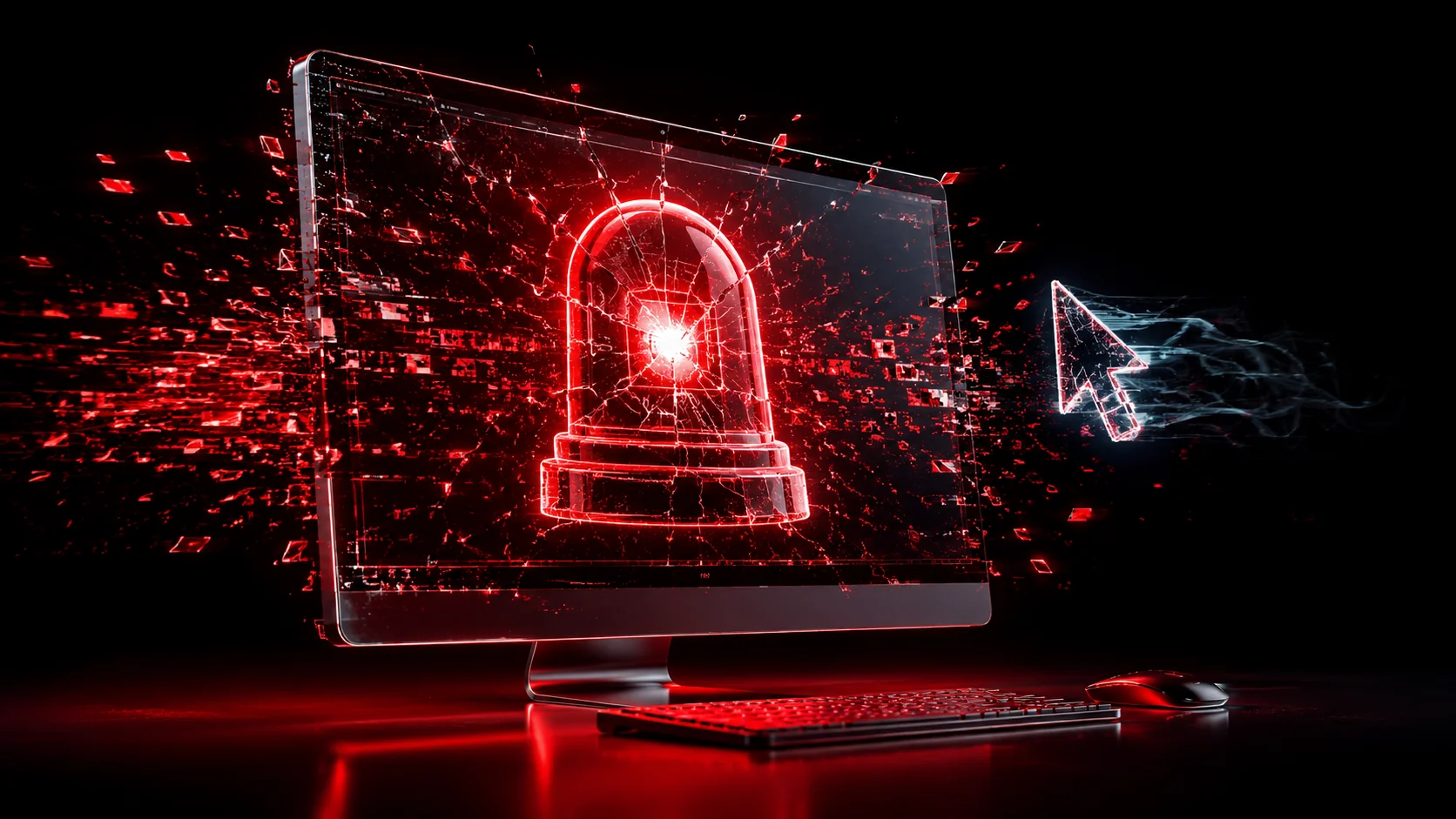
"Your computer is infected, call this number": the fake tech support scam
Disconnect the device from the internet immediately – unplug the ethernet cable or turn off Wi-Fi – or power it off if you can't find the setting fast. Don't just close the remote-access app.
The blaring pop-up and the polite caller both want the same thing: your screen, your trust, and eventually your money. Here's how the scam actually works and how to shut it down.
Fake tech support scams have been running for well over a decade and they still work, because they don't rely on a single trick: they rely on a sequence. First something scares you: a full-screen pop-up with a siren sound, or a phone call from someone who already seems to know your computer has a "problem." Then someone patient and professional-sounding walks you through "fixing" it, which really means getting you to install a remote-access tool and hand over control of your screen. What happens after that varies – data theft, real malware, a locked device, or a staged "refund" that ends with you wiring money or buying gift cards for a stranger – but the entry point is almost always one of two doors: a pop-up you didn't ask for, or a phone call you didn't make.
The Federal Trade Commission and Microsoft's own security guidance both describe the same pattern: scammers impersonate well-known brands to create panic, then use that panic to get remote access or payment. Knowing the pattern in advance is what makes it easy to recognize in the moment, when the siren is blaring and the "technician" is telling you not to hang up.
The fake pop-up: a webpage, not a scan
You're browsing normally and suddenly your screen fills with a red or blue warning: "Your computer has been infected with a virus" or "Windows Defender detected suspicious activity," often paired with a blaring alarm sound and a countdown timer. It usually locks the browser into full-screen mode and repeats a fake dialog box every time you try to close it, along with a toll-free number to "call Microsoft support immediately."
None of this is a real scan, and nothing on your computer is actually infected just from viewing the page. It's a webpage built to look like a system alert, and full-screen mode plus a repeating dialog box are just browser features being abused to make closing it feel harder than it is. The virus doesn't exist: the page itself is the entire attack, and its only job is to get you to call the number on it.
Closing it safely almost never requires anything drastic. On Windows, press Ctrl+Alt+Delete, open Task Manager, and end the browser process – don't waste time hunting for a small "x" the page may have hidden. On a Mac, use Cmd+Option+Esc to force-quit the browser. On a phone, close the browser app from the app switcher, or restart the phone if the tab reopens automatically. None of this installs anything or removes anything; it just gets the fake page off your screen, and your device is exactly as secure afterward as it was before the pop-up appeared.
The unsolicited phone call
The second entry point skips the pop-up entirely. Your phone rings and someone says they're calling from Microsoft, Apple, or your internet provider, and that their systems "detected unusual activity" or "a virus" coming from your device or IP address. They sound calm, official, and mildly urgent, not panicked, which is part of what makes them convincing.
This is the single clearest tell of the entire scam: legitimate companies do not proactively call customers to tell them they've remotely detected an infection. Microsoft has stated this directly in its own consumer guidance, and the same is true of Apple and virtually every mainstream ISP. Companies don't monitor your personal device from the outside and then call you about what they found – that isn't how their support model works, and no legitimate company has the ability to detect a virus on your specific computer without you first contacting them or installing something that reports back to them.
The reverse direction is where legitimate support actually happens: you notice a problem, you go to the company's official website or app, and you initiate contact through a phone number or chat you looked up yourself – never one read to you over the phone or shown in a pop-up.
The remote-access handoff
Whether it started with a pop-up or a call, the scam converges on the same next step: the "technician" asks you to open a remote-access tool so they can "show you the problem" or "fix it directly." The specific software varies – AnyDesk, TeamViewer, UltraViewer, and Windows' own built-in Quick Assist are all commonly abused this way, precisely because they're real, legitimate tools that IT professionals genuinely use, which makes the request feel routine rather than alarming.
Once you install the tool and read out (or approve) the connection code, the person on the other end has the same access to your screen and mouse that you do. From there, what happens depends on what they're after:
- They open random system tools and narrate scary-looking output. Command Prompt commands like assoc or the Windows Event Viewer's routine error logs look alarming to someone unfamiliar with them and are completely normal on any healthy computer – but a scammer will point at ordinary output and claim it proves infection, to justify the "fix" that follows.
- They install real malware or a keylogger. Now that they have hands-on access, they can plant something that keeps working long after the call ends, capturing passwords or giving them a way back in later.
- They go looking for banking or crypto access. They browse open tabs, saved passwords, and financial apps while you're on the call, sometimes asking you to log into your bank "so the technician can verify the refund went through" – which is really just them watching you enter your credentials.
- They lock you out of your own device. Changing a password or enabling a screen lock they control turns "getting help" into being held out of your own computer until you pay them.
- They stage a fake refund. Covered in detail below – this is one of the most common ways the call actually ends in a financial loss.

The fake refund overpayment trick
This variant deserves its own explanation because it's specifically designed to turn a scam that hasn't cost you anything yet into one that empties your bank account. After "diagnosing" the problem, the caller offers to refund the service fee you paid (or offers a refund for a support subscription you supposedly never wanted). They ask you to log into your online banking so they can "process it."
What you then see on screen looks like a deposit – sometimes several thousand dollars, far more than the refund amount that was mentioned. The caller acts alarmed: they "accidentally" refunded too much, and now insist you need to send the difference back immediately, usually through gift cards, a wire transfer, or cryptocurrency.
Nothing was actually deposited. There are two common ways this is faked. The simplest is that the "deposit" is just an image or a manipulated webpage shown while they still have remote control of your screen: it never touched your actual bank account, and the real balance never changed. The second, more elaborate version involves the scammer transferring money between your own accounts (for example, from a savings account into checking) while making it look like an external payment arrived. Either way, the money you're being asked to send back is real money leaving your account, in exchange for an overpayment that never existed. Gift cards and wire transfers are both effectively irreversible once sent, which is exactly why scammers insist on them instead of a traceable, reversible payment method.
Warning signs
- A pop-up with a loud alarm sound, a countdown timer, or a full-screen warning that blocks you from closing the browser normally
- An unsolicited call claiming to be from Microsoft, Apple, your ISP, or a "Windows support center"
- Any claim that a company remotely detected a virus on your specific device before you contacted them
- A request to install AnyDesk, TeamViewer, UltraViewer, or open Quick Assist for someone who called or messaged you first
- Being walked through opening Command Prompt or Event Viewer as "proof" of infection
- A "refund" that shows up as an amount larger than expected, followed by pressure to send back the difference
- Any request to pay in gift cards, wire transfer, or cryptocurrency
- Urgency and pressure not to hang up, not to consult anyone else, or not to take time to think
None of these need to appear together for a situation to be worth ending immediately. A single unsolicited call about a "detected" problem, on its own, is reason enough to hang up.
What to do
Close the pop-up using Task Manager or force-quit, not by clicking anything inside it. Hang up on unsolicited calls – you don't owe an explanation, and you can simply end the call mid-sentence. If you genuinely have a computer problem, go to the company's official website yourself and find their real support contact, or take the device to a support provider you already know and trust. Never call a number that appeared in a pop-up or that a caller gave you, and never let anyone you didn't contact first install software on your computer.
If a technician has remote control right now
Act fast and don't overthink the exact steps: the goal is simply to cut their access immediately. Disconnect the device from the internet first: unplug the ethernet cable, or turn off Wi-Fi from the network settings or the router itself. If you can't find the setting quickly, just power the device off completely. Don't waste time trying to close the remote-access app cleanly first, since the person on the other end may be able to prevent that or simply reconnect – cutting the network connection (or power) is what actually ends their access, not closing a window.
If you already gave remote access or sent money
Once the device is disconnected, work through this in order:
- Uninstall the remote-access tool once you're confident the connection is fully closed, and check installed programs for anything else unfamiliar.
- Run a full scan with a reputable antivirus/anti-malware tool before reconnecting to sensitive accounts. If you're not confident doing this yourself, a trusted local computer repair shop or the device manufacturer's official support line can help – just make sure you found that contact yourself rather than reusing anything from the scam.
- Change your passwords from a different, clean device: a phone or another computer the scammer never touched – starting with email, banking, and anything with saved payment methods. Assume any password typed or visible during the remote session may have been captured.
- Call your bank and card issuers directly using the number on the back of your card, not one from the call. Ask them to watch the account, and freeze or replace cards if you entered banking credentials during the session.
- If you sent a wire transfer, contact your bank immediately to ask about a recall – it's not guaranteed but time matters.
- If you sent gift cards, contact the retailer or issuer right away; some can flag or freeze the card's remaining balance before it's fully drained.
- If you paid by credit card, contact the card issuer to dispute the charge.
- Report it. In the US, file a report with the FTC or FBI IC3 – see how to report a scam website for exactly what to save and where it goes. Reporting doesn't always recover money, but it helps flag the numbers and patterns for others.
Other variants you'll run into
- The renewal invoice email. An email claims an antivirus subscription just auto-renewed for several hundred dollars, with a "customer service" number to call to dispute it. Calling connects you to the same remote-access playbook, not a real billing department – see that $499 antivirus renewal scam for the full pattern.
- The "your Amazon/PayPal account was charged" call. Same structure, different brand – an alarming charge you don't recognize, with a number to call that leads to the same remote-access request. The Amazon order text scam and PayPal phishing scam guides cover those specific versions.
- Search-ad and typosquatted "support" numbers. Searching for a company's support line sometimes surfaces a fake number in a paid ad or a lookalike site above the real result, so always cross-check the number against the company's actual official site.
- Follow-up "cleanup" calls. Someone claiming to work for a "consumer protection agency" or "refund recovery service" calls people who were already scammed once, offering to help recover the money – for an upfront fee. This is a second scam targeting the same victim.
How it plays out: a realistic example
Consider a retired grandfather, we'll call him Walter, who's browsing recipe sites on his laptop one evening. A siren sound suddenly fills the room and the screen turns red: "CRITICAL ALERT – your computer has been compromised, do not shut down your computer, call Microsoft Support now." A phone number sits in large text at the center. Walter isn't especially technical, but he's careful with money and has heard of tech scams before – he just doesn't recognize this particular shape of one, because it doesn't ask him for anything yet. It just tells him to call.
He calls. The man who answers is friendly and unhurried, introduces himself with a full name and an employee ID number, and talks Walter through downloading a remote-access tool "so I can see what Windows is seeing." Walter installs it and reads out the six-digit code on his screen. For the next twenty minutes, the "technician" opens Command Prompt and types commands that scroll pages of text, pausing to say things like "yes, there it is, that's the malware process." He explains that Walter is covered under an old protection plan and owes a $40 processing fee for the cleanup, then asks Walter to log into his bank to pay it directly.
When the bank page loads, Walter sees $4,040 has apparently just landed in his checking account. The technician sounds genuinely rattled: "That's not right, that's way too much: the system must have processed your full protection plan refund instead of just the fee. I need you to send the difference back right now or I'm going to get in serious trouble." He walks Walter to the nearest pharmacy to buy gift cards for the "refund department," staying on the phone the entire drive so Walter can't call anyone else to ask about it.
Walter's daughter finds out that night when she calls to check in and hears the story. The $4,040 was never real: it was a number on a screen while the caller still had remote control, not an actual transaction, and Walter's real balance never changed except for the gift cards he bought and read the codes for over the phone. He didn't do anything foolish; the call was built, piece by piece, to feel exactly like a normal, competent support interaction right up until the moment it demanded money. That's the entire design of the scam, and it works on careful people just as often as careless ones.
Prevention that goes one level deeper
A handful of habits, set up in advance, remove the decision from the moment of panic entirely.
- Make one household rule: you call them, they never call you. Agree with everyone in the family that any "detected problem" call is hung up on immediately, no exceptions, no matter how official it sounds.
- Keep official support numbers written down somewhere calm. A sticky note by the computer with the real number for your ISP, or a note in your phone for Apple/Microsoft support, means you never have to search for one under pressure – or worse, call one that appeared in a pop-up.
- Set browsers to block pop-ups and enable "Enhanced Safe Browsing" (Chrome) or the equivalent warning features in your browser, which catch many of these fake alert pages before they load.
- Talk to older relatives specifically about the remote-access step. The pop-up and the call are just the setup – the actual point of vulnerability is the moment someone is asked to install AnyDesk or TeamViewer for a stranger. Naming that specific moment in advance makes it recognizable later.
- Use a password manager and enable banking alerts for any transaction over a small threshold, so a real unauthorized transfer gets flagged fast if a scam ever does progress that far.
Quick checklist
- Close scary pop-ups with Task Manager or force-quit – never call the number on the page
- Hang up on any unsolicited call claiming to have "detected" a virus on your device
- Never install AnyDesk, TeamViewer, UltraViewer, or open Quick Assist for someone who contacted you first
- Treat any "refund" that's larger than expected as fake, no matter what the screen shows
- Never send gift cards, wires, or crypto to resolve a support call or refund
- If access was given, disconnect from the internet first, then clean up passwords and accounts from a separate device
Frequently asked questions
Is my computer actually infected if I see the pop-up?
Would Microsoft or Apple really call me about a virus?
A "technician" showed a refund overpayment and wants money back. Is that real?
What should I do if a remote technician still has control of my computer right now?
I already paid with a gift card or wire transfer. Can I get the money back?
Daniel A. and Óscar S. run Breachfolio, a small independent site about security and AI. This article was drafted with AI assistance and reviewed by a person before it went live. We write from documentation, vendor sources and published research rather than from original lab benchmarks, and we link a source in the sentence that relies on it. How we work · About us